

Most companies shop for AI outside Microsoft 365 while underusing the one already embedded in Word, Excel, and Power BI. Copilot is treated as another AI chatbot while two of its most powerful capabilities, Power Query in Excel and Prep Data for AI in Power BI, are barely known outside specialist circles. Here’s what Copilot can actually do in each tool, what it can’t, and the one step most teams skip.
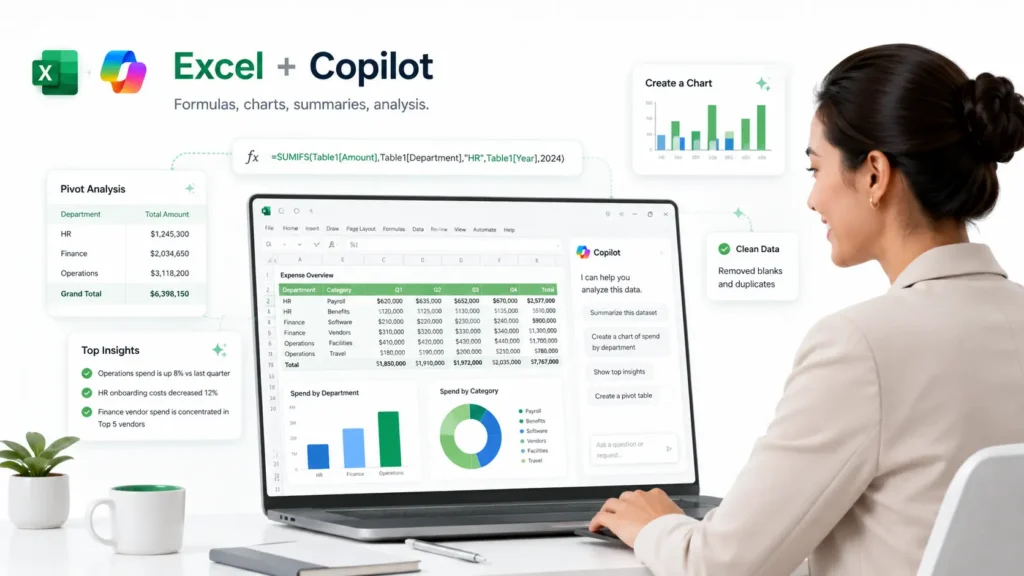
Excel: Copilot helps you create formulas, charts, summaries, and analysis faster
Copilot in Excel is the most efficient formula generator. When you ask it to pull data from another file, the request is executed in Power Query behind the scenes, which is why the import returns as a live, refreshable connection rather than a static paste, as confirmed directly in Microsoft’s own documentation on importing data with Copilot in Excel.
What Copilot in Excel can do:
- Instead of manually cleaning a messy file, users can ask Copilot to restructure tables, merge sheets, apply formatting, sort/filter data, or build Pivot Tables and charts; described in Get started with Copilot in Excel
- HR, Finance, and Operations users do not need to start from a blank formula. They can describe the calculation they need, then ask Copilot to explain the logic before they trust it. Get started with Copilot in Excel
- Copilot can pull data from the web, SharePoint, OneDrive files, and other organizational sources such as emails and meetings, depending on availability and permissions, as per Search and import data with Copilot in Excel
- For more complex analysis, Copilot in Excel can generate, explain, and insert Python code for statistics, forecasting, and advanced visuals such as heatmaps, as confirmed in Microsoft’s Excel blog on Copilot data analysis
- Business users do not have to let Copilot change the file immediately. They can ask for a plan first, use chat-only mode for analysis without changing the workbook, or allow editing when they are ready. (Get started with Copilot in Excel)
What it can’t do (yet):
- Don’t use Copilot as the final decision-maker for salary increases, bonus calculations, redundancy lists, payroll corrections, legal risk, medical absence interpretation, or financial commitments. Microsoft itself says Copilot can make mistakes and should not be used for sensitive finance/legal/medical decisions without review, per the Copilot in Excel FAQ
- Don’t expect one magic prompt like “pull salary benchmarks from the web and compare them to our employee salary file.” You may need to import/prepare the data first, then analyze it in a second step. Microsoft notes that Copilot can import data from other workbooks and sources, but combined workbook-data + external-data prompts have limitations. (Search and import data with Copilot in Excel)
- For monthly headcount, payroll checks, attrition dashboards, SLA reports, or budget variance files, don’t rely on someone typing the same prompt every month. Use Power Query, Power BI, or an approved workflow so the logic is repeatable and auditable.
- If HR or Finance files are checked out, locked, or saved in old formats, Copilot may not work properly. Microsoft documents checked-out SharePoint files and Strict Open XML Spreadsheet format as unsupported file-state examples; both are documented failure cases in the Copilot in Excel FAQ
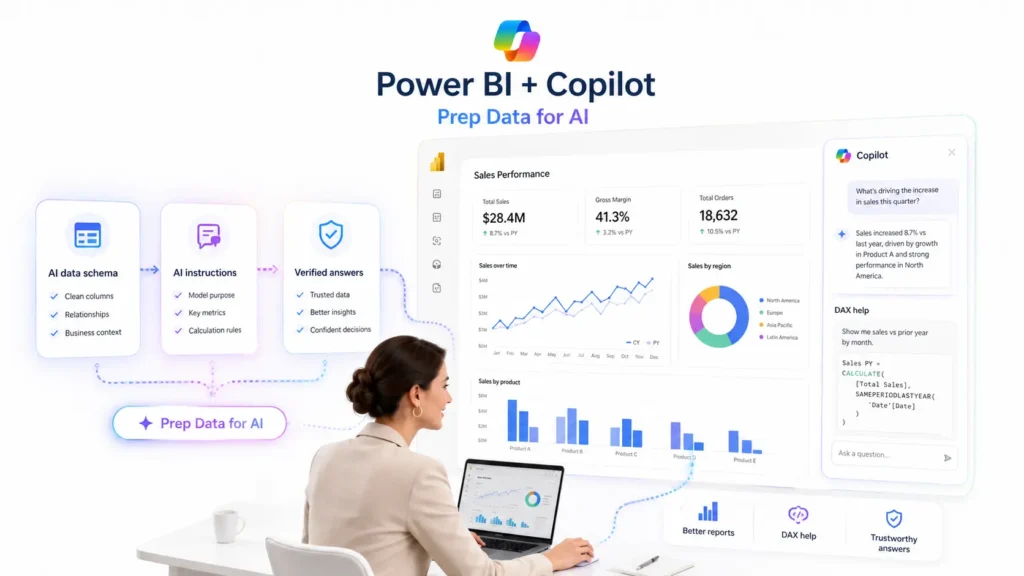
Copilot + Power BI = The most efficient report builder if you “Prep Data for AI”
Copilot in Power BI is not just a chatbot sitting next to a dashboard. Used properly, it can help HR, Finance, and Operations teams build reports faster, explain numbers, write DAX, and answer business questions in plain language.
But there is one condition: the semantic model must be prepared for AI first. In simple terms, the semantic model is the “clean business layer” behind a Power BI report. It tells Power BI what the data means: which field is headcount, which one is department, which one is country, which calculation is attrition, and how these should be used together.
If this layer is messy, Copilot will also be messy. That is why Microsoft introduced “Prep Data for AI.” This is not technical decoration. It is the setup that tells Copilot what it is allowed to use, how the business speaks, and which answers are already verified.
What “Prep Data for AI” actually involves, per Microsoft’s dedicated guide on preparing your data for AI:
- AI data schema — manually selecting which clean, unambiguous fields Copilot is allowed to use, so it doesn’t guess at the wrong column. For example: Use “Employee ID,” “Department,” “Country,” “Hire Date,” “Termination Date,” and “Termination Reason.” Do not let Copilot guess from 15 similar columns like “Org Unit,” “Dept Name,” “Business Area,” or “Team Label.” and to prevent any GDPR or security issues, instruct Copilot not to use any identifiable or sensitive (PII) columns.
- AI instructions — This means giving Copilot business context. Example: “In our company, attrition excludes internal transfers. Busy season is October to February. Headcount should always be calculated based on active employees at month-end.” This helps Copilot understand the business, not just the data.
- Verified answers — This means saving human-approved answers for common questions. Example: When someone asks “What is current headcount by country?”, Copilot should return the approved visual or calculation, rather than generating a new answer from scratch every time.
- Marking the model “Approved for Copilot” — without this, the standalone Power BI Copilot experience shows users a warning that answers may be low quality
What Copilot in Power BI can do once data is prepped:
- Write a DAX measure or query from a plain-English description and explain existing DAX, per Write DAX queries with Copilot
- Build a full multi-visual report page from a single prompt, with appropriate filters and layout, per Use Copilot with Power BI reports
- Generate plain-language descriptions for model measures automatically, per Use Copilot to create measure descriptions
- Answer ad hoc business questions and cite which visual or measure the answer came from, per the Copilot for Power BI overview
What it can’t do:
- Reliably answer questions using fields you didn’t include in the AI data schema — it’s designed to refuse or ask for clarification instead, per AI data schemas
- See the DAX behind a measure, or any hidden/private object, when connected live to a shared semantic model rather than a local one, per Use Copilot with semantic models in Power BI
- Build or transform a data model from scratch — that’s still Power Query / dataflow work, not a Copilot prompt
- Guarantee the same answer twice — Microsoft states explicitly that AI behavior is nondeterministic, even with identical inputs and identical data prep, per Prep Data for AI
The real missed opportunity!
The market is flooded with AI promises. Many organizations are experimenting, brainstorming use cases, reviewing case studies, and sometimes investing in new tools before fully using what is already available in their Microsoft 365 subscription. But for most companies, the best place to start is where people already work every day: Excel, Power BI, Word, Outlook, and Teams.
Even a small reduction in repetitive administrative work can create a measurable financial impact. I broke this down in a financial case on how much time leaders lose to manual HR and operational tasks.
The takeaway is simple:
Excel is where people work.
Copilot saves time and reduces manual effort.
Power Query makes repeated work easier to refresh.
Power BI scales trusted reporting.
Before investing in another AI platform, companies should first ask a simpler question: Are we already using the AI we are paying for?


No responses yet